|
ADV Site Maker
 |
^
Tile Selector |
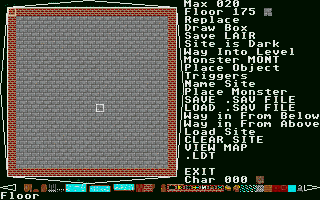
The Screen
the screen is used to view the changes made on a site, the
triangles at the sides may be used to navigate around the site,
pressing the left mouse button on a triangle will move the screen
in that direction by 1 square and by ten for the right mouse
button
The Tile Selector
the tile selector is used to select tiles for
drawing with, note some of the tiles are tops of other sprites,
you may use these as sunken doors, etc the arrows at the right
and left of the tile selector are used to navigate it, pressing
on the arrows with the left mouse button will increase or
decrease the tile by one place, while using the right will jump
several tiles, you may select a tile you can see on the selector
by pressing the left mouse button on it. under the tile is a
discription of what type of tile it is. Note some tiles are
illegal to place and may cause the site to crash if placed!
Menu Items
Max 020
Max is the number of squares that the site spans, the
default is 20, or a full area as seen on the screen. the ranges
are 20 to 90 you can increase this by pressing the left mouse
button over this number and decrease by the right mouse button.
Floor 175
this is the tile used as the floor, you may alter it by selecting
a different floor tile then clicking on Floor with your mouse to
change the setting
Replace
replace is used to replace any placed tile in the site
with another tile, you select the tile you wish to replace then
press on replace with the left mouse button, then select a new
tile for the old tile to be replaced with and press on the 'Repl
## with' to replace that tile.
Draw Box
this will draw a box using the currently selected tile,
press on Draw Box, a prompt at the bottom of the screen will tell
you to Select Box start point, press the left mouse button where
you wish the box to start, thew prompt will change to Select Box
End point, use the left mouse button to select this, then you
wait while the box appears.
Save LAIR
this option allows you to save a Lair as eather a temp
file or as an ADVenture location, you may find the correct site
name by using the VIEW
MAP option below, upon selection of
this option a file output box will appear, just type in it's temp
name or a valid ADV site name as described in VIEW MAP,
sitemaker will ask you for both a .ADV and a .SAV filename,
just leave the two the same as ADVenture requires both for a
valid site. most people will use the site name of S011100 as a
temp site name where S=Site, 01=X, 11=Y & 00=Level, use -9 to
10 for level codes., this will overwrite the site at this
location, but it's easy to find, it's the keep directly above the
starting town. when the site has been fully tested, a correct
site location should be found and the site Saved there.
Site is Dark/Light
this telly you if you will need light to see inside this
site, if it says Dark, you'll need light, if not you won't.
Way Into Level
this is an important menu item, as it defines where you
start the level. after pressing this button a prompt will appear
on the bottom of the screen saying Way into level from
wilderness, click on the map where you want the character to
appear when they enter the level from the wilderness, this will
only happen upon entering level 0 of the site.
Monster MONT
this is the Monster list
creation tool. upon pressing this option you will be greated with
a new screen.
Place
Object
this option leads to the place objects menu.
Triggers
this option leads to the
triggers menu.
Name Site
this allows you to name the level of the site, this will
appear breifly as a character enters the site, and will change
once the site is named.
Place Monsters
this leads to the place monsters menu.
SAVE .SAV FILE/LOAD .SAV FILE
these options are used to load/Save just the Object,
Monster and Item data files
Way in From Below
as way into level except used when entering a level from
one below.
Way in From Above
as way into level except used when entering a level from
one Above.
Load Site
this will prompt you with a file selector then load both
.ADV and .SAV files for a site.
CLEAR SITE
you will be prompted, are you sure, if you say yes, the
site will be cleared of objects, tiles, monsters and triggers.
VIEW
MAP
this option leads to the game map view screen, first a
count of the existing ADVenture sites is made then the map will
be display'd.
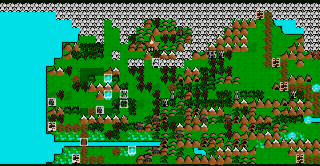
the map can be navigated by
pointing and clicking the right mouse button, this will centre
the tile under the mouse, the '?' key may be used to find the
.ADV & .SAV site location name. and 'ESC' to quit back to the
Site Maker mail menu.
.LDT
this allows you to select an .LDT, an ADV Line Data File there is
a .LDT maker tool included call'd Pshape.prg, this will create
and edit .LDT files, they are the pictures used while entering a
level.
EXIT
allows you to exit Site Maker, it will ask you if you
are sure?
Char 000
this telly you the number of
the currently selected tile.
|
|


